How to Use Score Box
As many of you already know, Versastyle is using a one-of-a-kind registration and scoring system called Score Box.
Score Box will allow you to:
- View and print your scores
- Add your dancers and entries
- Automatically calculate age divisions
- Upload your music
- Track your payment balance
- See your entries division ranking
- View who is currently onstage
- And so much more!
As this is a new system, we would appreciate your patience as we continue to improve the system and add features.
Follow the steps below to create an account, add your dancers and entries.
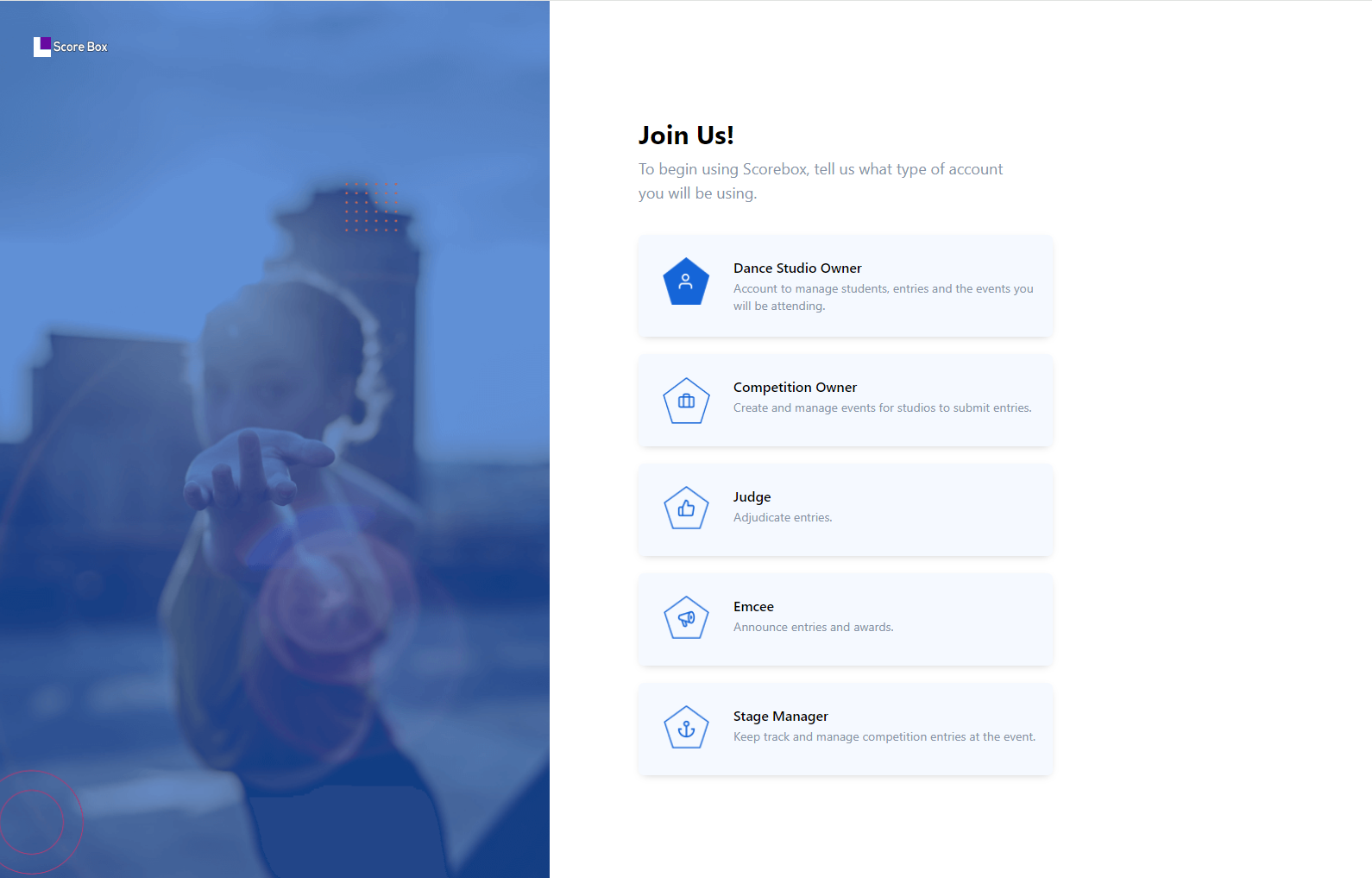
Step 1 - Create Account
- Register a Studio Owner Account with Score Box.
- Log in and complete the studio info form.
- Select “Versastyle Dance Competition”.
You will NOT be able to access an event until we have granted you access. Please be patient, this may take up to 24 hours.
You will receive an email notification once authorization has been granted to the event.
Watch the video for more info.
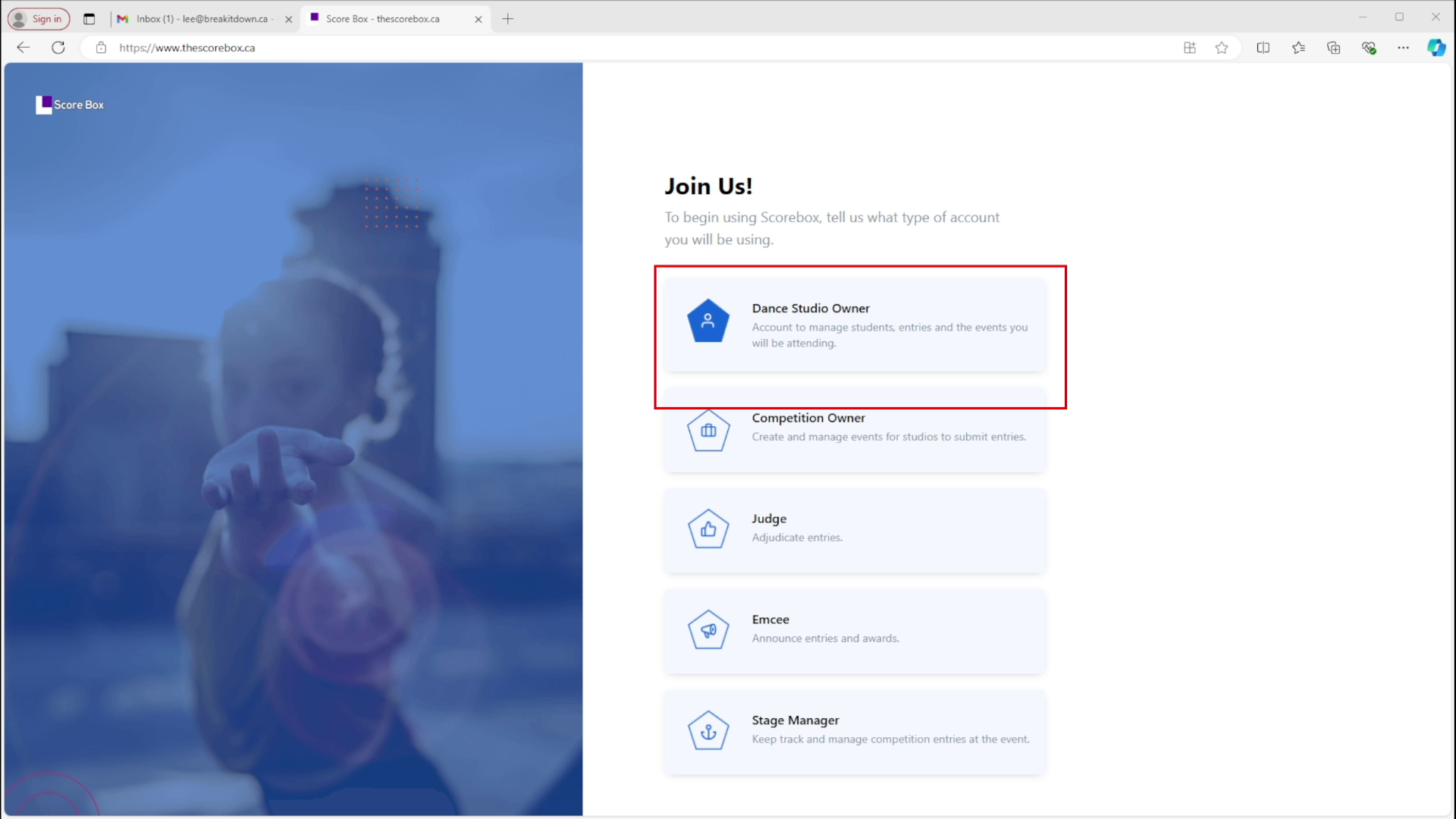
Step 2 - Adding Dancers
Once you’ve been given access to your selected event you may start adding your dancers and entries.
(Note: In the future version, it will retain your dancers information so that you don't have to add them again).
You have two ways to add dancers to your account.
Watch the video for more info.
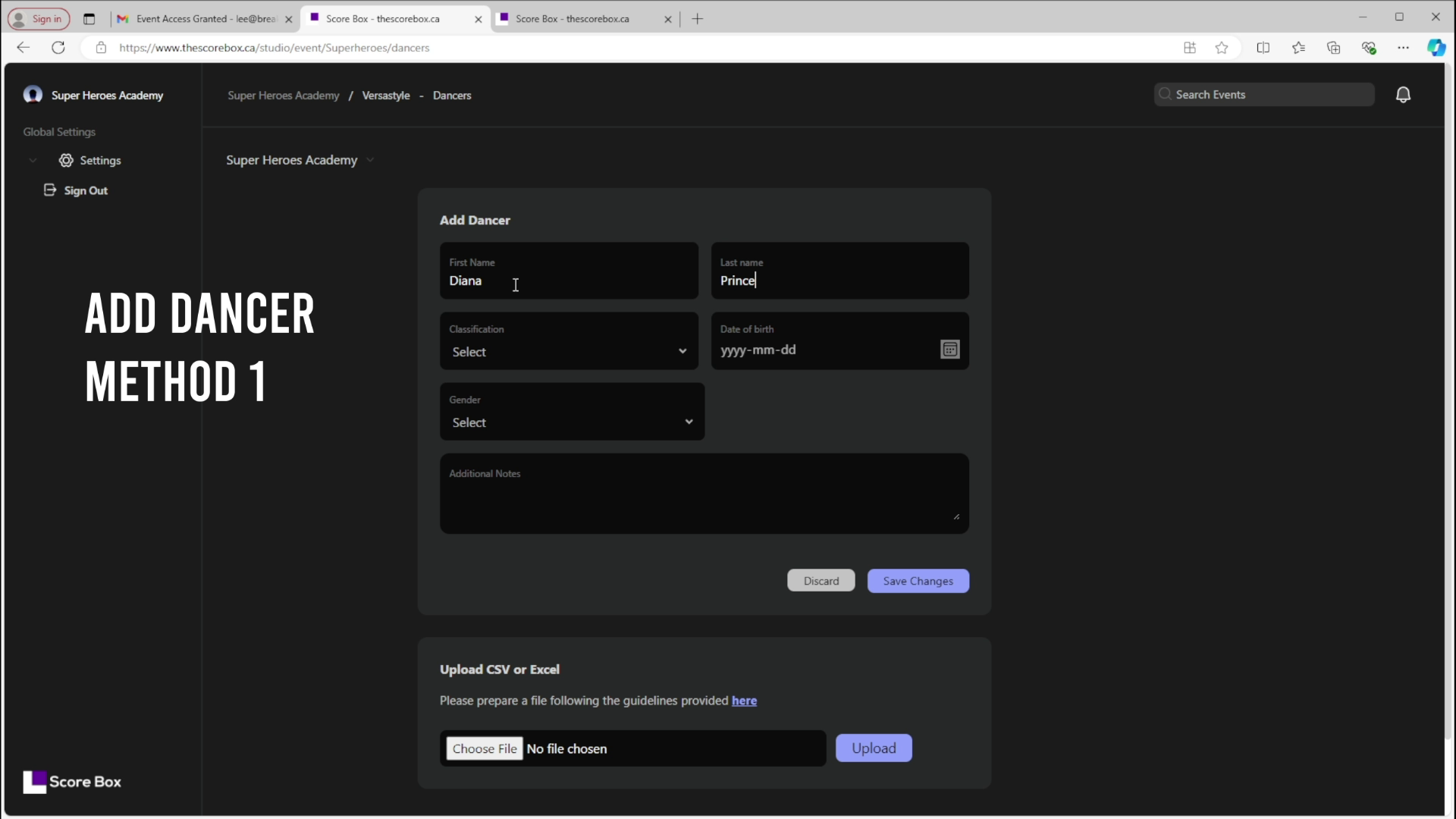
Step 3 - Adding Entries
After you have added your dancers, you can start adding entries.
- Click Entries on the left navigation.
- Click Add Entries.
- Fill out the form.
Please Note:
- Age Division is automatically calculated for you based on the competition age of each of your participating dancers.
- When you select dancers of multiple classifications, the system displays percentages and flags if you have a mixed group. Please check page 19 of our infopack for classification rules.
- You can upload and/or change music for each entry at a later time and use the music tab to track which tracks have been uploaded.
- You may edit your entries at any time before the competition schedule is locked.
Watch the video for more info.
Step 4 - Adding Special Entries
You can also register entries for VSDC's unique categories: REMIX, UNITY, IMPULSE, REPLAY & OVERTIME.
- Click Entries on the left navigation.
- Click Add Entries.
- Fill out the routine form.
- Select your desired Special Entry Type (Remix, Unity, Impulse, Replay or Overtime) from the dropdown.
Notes on Special Entries:
- Depending on the number of dancers you’ve selected, only some of the “Special Entry Type” options are available.
- After selecting “Special Entry Type”, additional required details specific to that challenge will be displayed.
Watch the video for more info.